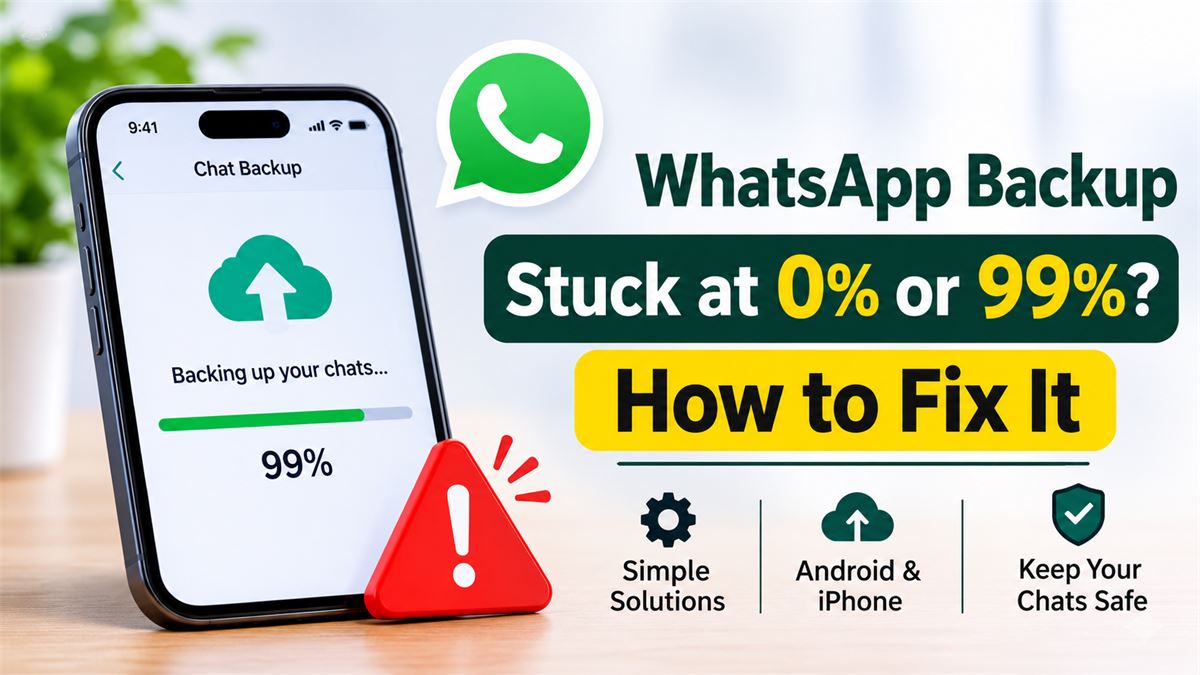
WhatsApp Backup Stuck at 0% or 99%? How to Fix It
WhatsApp backups help protect your conversations, photos, videos, voice messages and other important files. They become especially important when you switch to a new phone, reinstall WhatsApp or need to recover your chat history after losing your device.
However, sometimes the backup process does not work as expected. You may tap Back Up, see the progress stuck at 0%, or watch it reach 99% and remain there without completing. In other cases, WhatsApp may show Preparing backup, Waiting for Wi-Fi or Couldn't complete backup for an unusually long time.
This problem can happen on both Android and iPhone. It may be related to insufficient cloud storage, an unstable internet connection, large video files, phone storage limitations, account synchronization problems or temporary app issues.
The good news is that you can troubleshoot most backup problems without deleting your conversations.
In this guide, we explain why WhatsApp backups get stuck at 0% or 99% and how to fix the problem on Android and iPhone. We also cover what to do when a backup takes hours, how to reduce its size and how to protect your existing chats before trying more advanced solutions.
Important: Before following any troubleshooting steps, do not uninstall WhatsApp, clear its app data or delete an existing cloud backup unless you have confirmed that your important conversations are safely backed up or transferred.
Why Is WhatsApp Backup Stuck at 0% or 99%?
WhatsApp needs to prepare your chat history, collect the selected media files and upload the backup to your cloud storage account. If something interrupts this process, the progress indicator may stop moving.
On Android, WhatsApp generally uses your Google Account for cloud backups. On iPhone, it uses iCloud.
Although the backup services are different, several common problems can affect both platforms.
Here are the most common reasons:
1. Unstable Internet Connection
A reliable internet connection is important when uploading a WhatsApp backup. If your Wi-Fi keeps disconnecting, becomes unusually slow or switches between networks, the upload may pause or fail.
This is particularly noticeable when backing up large amounts of photos and videos.
2. Not Enough Cloud Storage
Your Google Account or iCloud account needs enough available storage to complete the backup.
On Android, Google Account storage is shared across Google Drive, Gmail and Google Photos. On iPhone, WhatsApp backups use available iCloud storage.
If your account is close to its storage limit, the backup may fail or remain incomplete.
3. Large WhatsApp Backup Size
WhatsApp conversations can contain thousands of photos, videos, documents and voice messages.
Videos are often responsible for a large part of the backup size. If you have several years of conversations and regularly share videos, the backup may take much longer than expected.
4. Insufficient Storage on Your Phone
Cloud storage is not the only requirement. Your phone also needs enough free internal storage to prepare and process backup data.
A device with very little available space may struggle to complete the process.
5. Google Account or iCloud Synchronization Problems
Sometimes WhatsApp cannot communicate properly with the cloud account connected to your device.
On Android, this can happen because of Google Play Services, account synchronization or permission problems.
On iPhone, it may be related to iCloud Drive settings, Apple Account access or temporary synchronization issues.
6. Battery Restrictions and Background Activity
Some Android phones restrict background activity to improve battery life.
If WhatsApp is prevented from running in the background, a large backup may be interrupted when you switch to another app or lock your screen.
Battery-saving modes and aggressive background restrictions can contribute to this problem.
7. Temporary WhatsApp or Cloud Service Problems
Occasionally, the problem is not caused by your phone.
A temporary issue with WhatsApp, Google services or iCloud may prevent the backup from progressing normally.
If everything looks correct on your device, waiting and trying again later may help.
How to Fix WhatsApp Backup Stuck at 0% or 99%
Try the following solutions in order. Start with the simple checks before changing account settings or attempting advanced troubleshooting.
Fix 1: Check Your Internet Connection
The first thing you should check is your internet connection.
WhatsApp needs to upload your backup to Google storage or iCloud. Even if websites and other apps appear to work normally, an unstable connection may interrupt a large upload.
Follow these steps:
-
Open your phone's Settings.
-
Turn Wi-Fi off.
-
Wait approximately 10 seconds.
-
Turn Wi-Fi back on.
-
Connect to a reliable network.
-
Open WhatsApp and go to Chat Backup.
-
Try starting the backup again if the previous attempt has clearly failed.
If the problem continues, try another Wi-Fi network.
You can also test your mobile data connection. However, large backups may consume considerable data, so check your mobile plan before enabling cellular backup.
A useful tip: Avoid repeatedly switching between Wi-Fi networks during a backup. WhatsApp notes that changing networks can cause the backup to time out.
If you are using a public Wi-Fi connection, try a private home or office network instead. Some public networks require additional sign-in steps or restrict certain connections.
Fix 2: Check Available Google Account or iCloud Storage
Insufficient cloud storage is one of the most important things to investigate when a WhatsApp backup refuses to complete.
You might have plenty of free space on your phone but very little available storage in your cloud account.
For Android users
WhatsApp backups on Android count towards your Google Account storage limit.
Your Google storage is shared across services such as Google Drive, Gmail and Google Photos.
To check available storage:
-
Open a browser on your phone or computer.
-
Sign in using the same Google Account connected to WhatsApp.
-
Check how much storage is available.
-
Review which services are using the most space.
If your storage is full, consider removing unnecessary large files, old emails with attachments or unwanted photos after checking that you no longer need them.
You can also review available storage plans through Google One.
Important: Do not delete your existing WhatsApp backup simply to free up space unless you understand the consequences. Deleting it permanently can remove your only cloud copy of your conversations.
For iPhone users
WhatsApp uses iCloud for chat backups.
To check available iCloud storage:
-
Open Settings on your iPhone.
-
Tap your name at the top.
-
Select iCloud.
-
Check the available storage.
-
Review which apps and services are using the most space.
If storage is almost full, remove unnecessary files or manage your iCloud storage.
You can also review Apple's available iCloud+ storage plans if you need additional space.
After making enough space available, return to WhatsApp and try backing up your chats again.
Fix 3: Restart Your Phone
A temporary software problem may prevent WhatsApp from communicating properly with Google services or iCloud.
Restarting your phone can refresh background services and resolve minor problems.
For Android:
-
Press and hold the power button.
-
Select Restart.
-
Wait for your phone to start again.
-
Open WhatsApp.
-
Go to Settings > Chats > Chat backup.
-
Try backing up your conversations.
For iPhone:
-
Open the power-off screen using the appropriate button combination for your model.
-
Turn off your iPhone.
-
Wait a few seconds.
-
Turn it back on.
-
Open WhatsApp and check the backup status.
Make sure your device has sufficient battery or is connected to a charger.
Restarting does not delete your WhatsApp conversations or existing cloud backup.
Fix 4: Turn Off Include Videos to Reduce Backup Size
If your WhatsApp backup contains many videos, uploading everything may take a long time.
Videos usually take up more space than text messages and many ordinary photos. Reducing the amount of media included in the backup can make the process easier.
WhatsApp provides an option to exclude videos from future backups.
Follow these steps:
-
Open WhatsApp.
-
Go to Settings.
-
Select Chats.
-
Tap Chat backup.
-
Find the Include videos option.
-
Turn it off.
-
Tap Back Up to create a new backup.
This option is particularly useful if your chats contain large video files.
For example, imagine your WhatsApp backup contains 8 GB of conversations and media, including several gigabytes of videos.
Excluding videos can significantly reduce the amount of data that needs to be uploaded.
However, remember that videos excluded from the cloud backup will not be restored from that backup later. Keep important videos separately if you need to preserve them.
You can also review WhatsApp's storage management section to identify large files and decide which media you no longer need.
Fix 5: Check Free Storage on Your Phone
Sometimes your cloud account has sufficient space, but your phone does not have enough free internal storage.
WhatsApp may need temporary working space while preparing your backup.
Check your available phone storage before trying again.
On Android
-
Open Settings.
-
Select Storage.
-
Check how much internal storage is available.
-
Review large downloads, unused applications and unnecessary files.
-
Remove items you no longer need.
On iPhone
-
Open Settings.
-
Select General.
-
Tap iPhone Storage.
-
Wait for the storage breakdown to load.
-
Review large applications and unnecessary downloads.
-
Free up some space if required.
Avoid deleting WhatsApp's app data or documents to create space. This may remove local conversations and media that have not been backed up.
If your phone is nearly full, freeing up storage before restarting the backup is a sensible step.
Fix 6: Check Google Account Permissions on Android
If your WhatsApp backup is stuck at 0% on Android, the connected Google Account may not be communicating correctly with the application.
First, confirm that the correct Google Account is connected.
Follow these steps:
-
Open WhatsApp.
-
Tap the three-dot menu.
-
Select Settings.
-
Open Chats.
-
Tap Chat backup.
-
Check the Google Account shown on the screen.
Make sure it is the account you want to use for your WhatsApp backup.
If the account is missing or unavailable, check whether it is properly added to your phone.
You can also review account synchronization:
-
Open your phone's Settings.
-
Go to Passwords & accounts or Accounts, depending on your device.
-
Select your Google Account.
-
Open Account sync.
-
Check whether synchronization is working.
-
If an option to sync now is available, use it.
If you receive an account-related error, WhatsApp also recommends checking account permissions and synchronization settings.
Do not remove your Google Account immediately. Try the simpler checks first, because removing an account can affect other applications and services on your phone.
Fix 7: Update Google Play Services on Android
Google Play Services helps Android applications communicate with Google services.
If it is outdated or experiencing problems, WhatsApp backup may not work properly.
To check for an update:
-
Open your phone's Settings.
-
Select Apps.
-
Find Google Play Services.
-
Open App details.
-
Check whether an update is available.
-
Install the update if required.
-
Restart your phone.
-
Try creating the WhatsApp backup again.
The exact menu names may differ depending on your Android manufacturer.
Also check whether WhatsApp itself has an available update in the Google Play Store.
Updating these components may resolve compatibility and synchronization problems.
Fix 8: Check iCloud Drive and WhatsApp Access on iPhone
If your WhatsApp backup is stuck at 0% or refuses to start on an iPhone, check whether iCloud is properly enabled.
WhatsApp needs access to iCloud to store its chat backup.
Follow these steps:
-
Open iPhone Settings.
-
Tap your name.
-
Select iCloud.
-
Check whether iCloud Drive is enabled.
-
Open the section showing apps using iCloud.
-
Confirm that WhatsApp is allowed to use iCloud, if the option is available.
-
Return to WhatsApp.
-
Open Settings > Chats > Chat Backup.
-
Try creating a backup.
Also check whether you are signed in to the Apple Account you normally use.
If you recently changed your Apple Account, switched devices or modified iCloud settings, verify that the account containing your existing WhatsApp backup is still the one being used.
Do not sign out of iCloud as your first troubleshooting step. WhatsApp lists signing out and back in as a later option because doing so can affect other applications and iCloud services.
Fix 9: Allow WhatsApp to Run in the Background
Some Android devices aggressively restrict background applications to save battery.
This can interfere with large backups, particularly when your phone screen is turned off.
You can check WhatsApp's battery settings.
-
Open Settings.
-
Select Apps.
-
Find WhatsApp.
-
Open Battery or App battery usage.
-
Review the available background activity settings.
-
Allow background activity if it is restricted.
You may also temporarily turn off Battery Saver while creating the backup.
On some devices, the relevant settings may be called Unrestricted, Allow background activity or Don't optimize.
The names vary between Samsung, Xiaomi, OnePlus, Motorola and other Android manufacturers.
For iPhone users, keep WhatsApp open while testing a backup and avoid manually closing the application during the process.
If your backup is large, connect the phone to power and give the upload enough time.
Fix 10: Force Stop WhatsApp and Try Again (Android)
If WhatsApp has become unresponsive during the backup process, restarting the application may help.
You can force stop WhatsApp without deleting its data.
Follow these steps:
-
Open Settings.
-
Select Apps.
-
Find WhatsApp.
-
Tap Force stop.
-
Confirm the action.
-
Open WhatsApp again.
-
Go to Settings > Chats > Chat backup.
-
Check the backup status.
Force stopping the application closes its current processes. It does not normally remove your stored conversations.
However, avoid repeatedly force stopping WhatsApp while an upload is actively progressing. Use this method when the process appears frozen or has failed.
Fix 11: Update WhatsApp to the Latest Version
An outdated WhatsApp version may contain bugs or compatibility issues that affect backup functionality.
Check whether an update is available.
Android
-
Open Google Play Store.
-
Search for WhatsApp Messenger.
-
Open its application page.
-
Tap Update if the option is available.
-
Wait for the update to finish.
-
Open WhatsApp and check the backup status.
iPhone
-
Open the App Store.
-
Search for WhatsApp Messenger.
-
Open its application page.
-
Tap Update if available.
-
Wait for the installation to finish.
-
Open WhatsApp and try again.
Updating WhatsApp generally keeps your conversations intact, but it is still good practice to protect important chats before making major application changes.
Avoid downloading unofficial WhatsApp versions or modified APK files to fix backup problems. They can create security and compatibility risks.
Fix 12: Check Whether WhatsApp Is Experiencing a Temporary Problem
Sometimes everything on your phone is configured correctly, but the backup still refuses to complete.
A temporary service issue can affect the connection between WhatsApp and its cloud storage provider.
Before changing advanced settings, check whether other users are reporting similar problems.
You can:
-
Check the official WhatsApp Help Center.
-
Look for recent reports on Downdetector.
-
Check Google Workspace or Google service status information when a Google service appears to be affected.
-
Review Apple's System Status page if iCloud services appear to be unavailable.
If there is a wider service problem, wait until the service is working normally and try again.
Repeatedly starting and stopping a backup during a service interruption is unlikely to help.
What to Do If WhatsApp Backup Is Stuck at 99%?
A backup reaching 99% can be particularly frustrating because it looks almost complete.
However, it does not always mean the backup is corrupted.
WhatsApp may still be processing or uploading the final part of the selected data. A large video collection, an unstable connection or limited storage can make the final stage take longer.
Try these steps:
1. Wait Before Interrupting the Backup
If the progress is moving slowly, give it more time.
A large first backup may take significantly longer than a regular daily backup.
Keep the phone connected to a reliable Wi-Fi network and a power source.
Avoid immediately force stopping the application or restarting your phone.
2. Check Available Storage Again
If the backup reaches 99% and then fails, check your Google Account or iCloud storage.
Also check the phone's internal storage.
A nearly full storage account can prevent the upload from completing successfully.
3. Exclude Videos from the Next Attempt
If the backup contains many videos, turn off Include videos in WhatsApp's Chat Backup settings.
This can reduce the size of the next backup.
Remember that excluded videos will not be included in that backup.
4. Use a More Stable Internet Connection
Try a reliable Wi-Fi connection rather than switching between networks repeatedly.
If your router frequently disconnects, restarting it may help.
5. Check Whether the Backup Has Actually Completed
Sometimes the progress indicator or notification does not disappear immediately.
WhatsApp notes that when a backup reaches 100%, background processes may still be running, including media upload or download. It recommends waiting a few hours if the completion notification remains.
Check the last successful backup information in WhatsApp's Chat Backup screen rather than relying only on the notification.
Important: Do not delete an existing backup just because the progress indicator is stuck at 99%. First establish whether you have a valid backup and whether the current attempt has actually failed.
WhatsApp Backup Stuck at 0% on Android: Additional Checks
If you are using Android and the general solutions have not worked, check these additional items.
Check Whether Your Google Account Is Correct
Your WhatsApp backup is associated with both your phone number and Google Account.
If you have multiple Google Accounts on your device, make sure you are using the correct one.
A backup created with one Google Account cannot simply be restored using a different account.
Check the Active SIM Card
If your phone supports dual SIM cards, make sure the SIM associated with your WhatsApp number is active.
WhatsApp specifically recommends checking this when troubleshooting certain Google backup problems.
Check Google Play Services
Make sure Google Play Services is installed and working correctly.
This is especially relevant on Android phones where Google services have been disabled, restricted or modified.
Try Another Google Account Only When Necessary
If you suspect an account-specific problem, you may consider testing with another Google Account.
However, changing accounts creates a separate backup destination. It does not automatically transfer an existing backup.
Before making this change, confirm where your existing backup is stored and understand which account you will need when restoring your chats.
WhatsApp Backup Not Working on iPhone: Additional Checks
iPhone users should pay particular attention to iCloud settings.
Check Your Apple Account
Make sure you are signed in to the same Apple Account that contains your WhatsApp backup.
If you recently changed accounts, verify the backup location before attempting to create a new one.
Check iCloud Availability
Open Settings > your name > iCloud and review your available storage.
If your iCloud storage is full, remove unnecessary files only after confirming they are not important.
Check iCloud Drive
Make sure iCloud Drive is enabled and WhatsApp has permission to use iCloud where the setting is available.
Avoid Deleting the Existing Backup
If WhatsApp continues to fail, do not immediately remove your existing iCloud backup.
WhatsApp mentions deleting the existing backup as a later troubleshooting option, but it is irreversible and can remove the only cloud copy of your conversations.
Only consider this after confirming that you have another safe copy or that losing the existing backup would not affect you.
How to Make WhatsApp Backup Faster
If your WhatsApp backup works but takes too long, a few adjustments can make future backups easier.
1. Exclude Unnecessary Videos
Videos can make a backup considerably larger.
Turn off Include videos if you do not need them in your cloud backup.
2. Remove Unwanted Large Media
WhatsApp provides storage management tools that help identify large files and frequently forwarded media.
Open WhatsApp > Settings > Storage and data > Manage storage.
Review large files and delete only the items you no longer need.
Before deleting anything, save important photos, videos and documents somewhere safe.
3. Use a Reliable Wi-Fi Connection
A stable connection is more important than simply having a high advertised internet speed.
Avoid networks that frequently disconnect or require repeated sign-ins.
4. Keep Your Phone Connected to Power
A large backup may take time, particularly the first time you create one.
Keeping your phone charged helps avoid interruptions.
5. Use a Regular Backup Schedule
After resolving the problem, enable automatic backups.
On Android, open Settings > Chats > Chat backup and select an appropriate backup frequency.
On iPhone, use Settings > Chats > Chat Backup and configure automatic backups where available.
Regular backups reduce the amount of new data that needs to be uploaded each time.
Is It Safe to Uninstall WhatsApp When Backup Is Stuck?
Uninstalling WhatsApp should not be your first solution.
If the backup has not completed, your latest conversations may exist only on your phone.
Uninstalling the application without a valid backup can result in losing those messages.
Before considering reinstallation, check the following:
-
Is there a recent successful cloud backup?
-
Does WhatsApp show the correct backup date and time?
-
Are your important photos and videos saved separately?
-
Do you know the Google Account or Apple Account used for the backup?
-
Do you have the correct phone number for restoring your chats?
-
If end-to-end encrypted backup is enabled, do you have the required password, passkey or encryption key?
If you cannot confirm these details, do not uninstall WhatsApp yet.
WhatsApp's own troubleshooting guidance includes reinstalling as a later step for certain Android backup errors. However, this should only be attempted after protecting your local chat history and understanding the risks.
How to Protect Your WhatsApp Chats Before Changing Phones
A stuck backup becomes especially concerning when you are planning to move to another device.
If your existing phone is still working, do not rush to reset it or uninstall WhatsApp.
First, check whether the last successful backup is recent enough.
On Android:
-
Open WhatsApp.
-
Go to Settings > Chats > Chat backup.
-
Check the last backup date.
-
Confirm the Google Account.
-
Check whether videos are included.
-
Create a new backup only after resolving any errors.
On iPhone:
-
Open WhatsApp.
-
Go to Settings > Chats > Chat Backup.
-
Check the last successful backup time.
-
Confirm that iCloud is working.
-
Check available iCloud storage.
-
Create a new backup after resolving the issue.
You can also use WhatsApp's built-in chat transfer feature when moving between supported devices.
This can be useful when you want to move conversations directly from an old phone to a new phone instead of relying entirely on a cloud backup.
However, follow the official transfer instructions for your device combination. Do not erase the old phone until you have confirmed that the conversations are available on the new one.
Frequently Asked Questions
1. Why is my WhatsApp backup stuck at 0%?
WhatsApp backup may remain at 0% because of an unstable internet connection, insufficient cloud storage, account synchronization problems, app permissions or a temporary service issue.
Check your internet connection and cloud storage first. Then restart your phone and try creating the backup again.
2. Why does WhatsApp backup get stuck at 99%?
A backup may remain at 99% because it is processing or uploading the final data, especially when your chat history contains large videos and media files.
Wait before interrupting the process. Check storage and internet connectivity if it does not complete.
3. How long should a WhatsApp backup take?
There is no fixed backup time.
A small backup containing mostly text messages may complete quickly, while a large backup with years of photos and videos can take considerably longer.
The first backup may take more time than subsequent automatic backups.
4. Can I use WhatsApp while backing up?
You can generally continue using WhatsApp during the backup process. However, avoid closing the application forcefully, restarting the device unnecessarily or interrupting its internet connection.
For a large backup, keeping WhatsApp open and the phone connected to power is a sensible precaution.
5. Does WhatsApp backup include photos and videos?
WhatsApp backups can include your chat media. On Android, you can choose whether videos are included using the Include videos option.
On iPhone, check the backup settings and available storage.
Remember that media excluded from a backup may not be available when you restore chats from that backup.
6. Does WhatsApp backup use Google Drive storage?
On Android, WhatsApp backups count toward your Google Account storage quota.
Google Account storage is shared across Google Drive, Gmail and Google Photos.
If your account reaches its storage limit, you may need to free up space or upgrade your storage plan.
7. Why is WhatsApp backup not working even with enough storage?
Storage is only one possible reason.
The issue may also be related to network connectivity, account access, Google Play Services, iCloud Drive, app permissions or temporary service problems.
Try the troubleshooting steps in this guide before making major changes.
8. Will turning off Include videos delete my existing WhatsApp videos?
Turning off Include videos changes what is included in future backups. It does not automatically delete the original videos from your WhatsApp conversations.
However, videos excluded from a new backup will not be included in that backup for restoration.
9. Can I recover WhatsApp chats without a Google Drive or iCloud backup?
Possibly, depending on your device and circumstances.
Android may have local WhatsApp backup files, while direct chat transfer may be available when the old phone still works.
On iPhone, WhatsApp's supported transfer options may help if you still have access to the old device.
Recovery is not guaranteed. Avoid deleting the application or resetting your old phone before checking available recovery options.
10. Should I delete my old WhatsApp backup and create a new one?
Not immediately.
Your old backup may be the only copy of your important conversations.
Deleting it is permanent, so first confirm that you have another valid backup or a safe copy of your important data.
11. Why does WhatsApp backup keep saying Preparing?
WhatsApp may be preparing your chat history and media before uploading it to cloud storage.
A large chat history, limited device storage or an interrupted process can make this stage take longer.
Check your phone storage, keep a stable internet connection and allow the process some time.
12. Will changing Wi-Fi networks fix a stuck WhatsApp backup?
It may help if the current network is unstable.
However, repeatedly switching between networks can cause the backup to time out.
Try one reliable network and keep it connected while the backup runs.
13. Does end-to-end encrypted backup affect the backup process?
End-to-end encrypted backups add another layer of protection.
You need the correct password, passkey or 64-digit encryption key to access an encrypted backup when restoring it, depending on the method you selected.
Keep your recovery credentials safe. Without the required credentials, you may not be able to access that backup.
14. Why is WhatsApp backup stuck only when I lock my phone?
On some Android devices, battery optimization or background restrictions may limit WhatsApp's activity when the screen is off.
Check the application's battery settings and allow background activity where appropriate.
You can also keep WhatsApp open while testing a backup.
15. What should I do if none of the fixes work?
If the problem continues after checking storage, connectivity, permissions, accounts and app updates, contact WhatsApp Support through the application or official Help Center.
Provide your device model, operating system version, WhatsApp version and the exact error message.
Do not share your account password, encryption key or verification codes with anyone claiming to fix your backup.
Final Thoughts
A WhatsApp backup stuck at 0% or 99% can happen for several reasons, but it does not necessarily mean your conversations are lost.
Start by checking your internet connection, available Google Account or iCloud storage, and free space on your phone. Then reduce the backup size by excluding unnecessary videos, check account permissions and update WhatsApp if required.
Android users should also review Google Account synchronization and Google Play Services, while iPhone users should check iCloud Drive and their Apple Account settings.
Most importantly, protect your existing conversations before attempting advanced fixes. Do not delete your existing cloud backup, clear WhatsApp data or uninstall the application until you know that your important chats are safe.
Once the backup works again, enable automatic backups and check the last successful backup date regularly. This simple habit can help protect your conversations when you change phones or face an unexpected device problem.