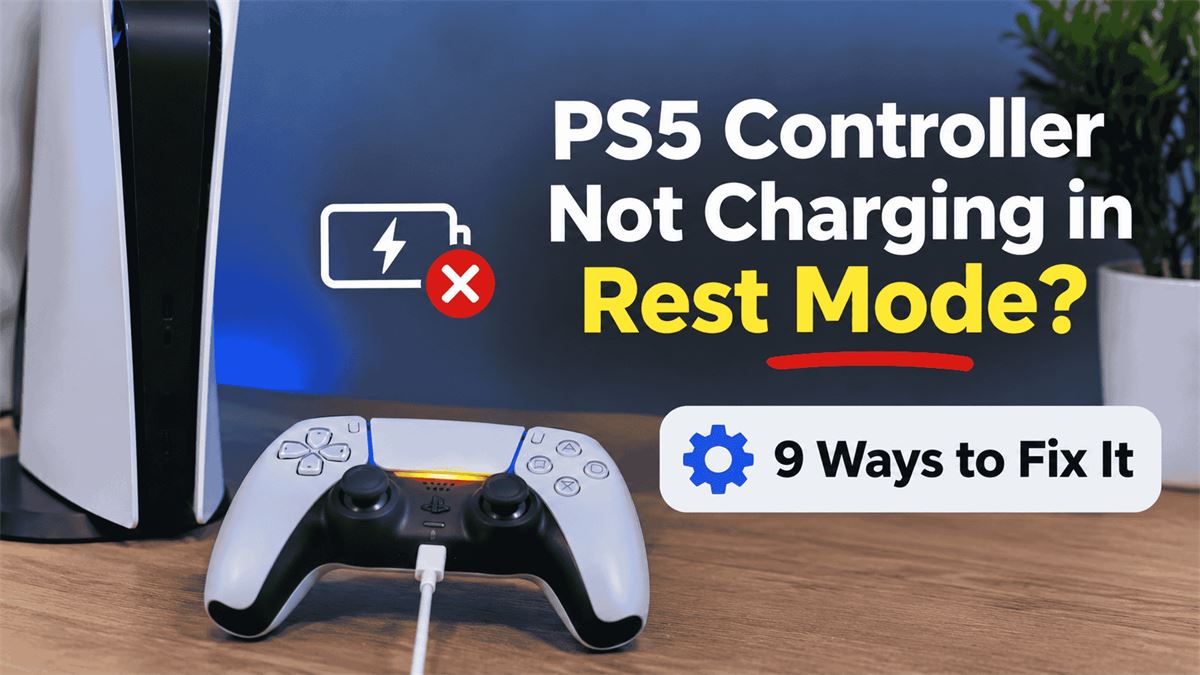
PS5 Controller Not Charging in Rest Mode? 9 Fixes
Your DualSense controller charges while the PS5 is on, but stops when the console enters Rest Mode? The fix may be one setting. This guide walks through nine practical checks, explains the orange charging light and covers newer Adaptive charging options.
Fast answer: Go to Settings → System → Power Saving → Features Available in Rest Mode → Supply Power to USB Ports and select Always. If charging still fails, try a different USB-C cable and console port.
On this page
- Quick fix: enable USB charging in Rest Mode
- Why a PS5 controller stops charging in Rest Mode
- 1. Turn on “Supply Power to USB Ports”
- 2. Understand the “3 Hours” and “Adaptive” options
- 3. Try a different PS5 USB port
- 4. Replace the USB-C cable with a compatible cable
- 5. Check whether the controller is already fully charged
- 6. Restart the PS5 and enter Rest Mode normally
- 7. Update PS5 system software and controller device software
- 8. Reset and reconnect the DualSense controller
- 9. Test another charging method and seek repair if needed
- PS5 controller charging symptoms: what they usually mean
- PS5 Slim and PS5 Pro: does Rest Mode charging work differently?
- Can a DualSense controller charge without the PS5?
- How to avoid Rest Mode charging problems in the future
- Frequently asked questions about PS5 Rest Mode charging
- Final checklist and official sources
Quick fix: enable USB charging in Rest Mode
If your PS5 controller charges while the console is on but stops charging in Rest Mode, check the console’s USB power setting first. On your PS5, open Settings → System → Power Saving → Features Available in Rest Mode → Supply Power to USB Ports. Choose Always for the simplest test, or 3 Hours if you normally charge shortly after gaming. Supported consoles also offer Adaptive.
Connect the controller using a compatible USB cable, put the console into Rest Mode, and look for the controller’s slowly blinking orange light. When charging finishes, the light goes out. An unlit light by itself does not prove charging failed: the battery might already be full.
PlayStation documents these settings in its official Rest Mode charging guide.
Why a PS5 controller stops charging in Rest Mode
Rest Mode is a low-power state, not the same as shutting the console off. A PS5 can keep selected functions running, including supplying electricity to USB ports. Whether that happens depends on the selected power-saving option, your console model, the connected accessory and the time elapsed since entering Rest Mode.
Other causes are more ordinary: a damaged USB-C cable, a loose connector, a USB port problem, a controller battery that has reached full charge, or an intermittent controller issue. The useful diagnostic question is does it charge when the PS5 is fully on? If yes, start with power settings. If no, test the cable, port and controller.
1. Turn on “Supply Power to USB Ports”
- Turn on the PS5 and go to Settings.
- Select System, then Power Saving.
- Open Features Available in Rest Mode.
- Set Supply Power to USB Ports to Always.
- Connect the controller and enter Rest Mode through Control Center → Power → Enter Rest Mode.
Use Always temporarily while diagnosing the problem because it removes the three-hour cutoff from your test. Once charging works, you can select a lower-power option. Do not confuse the setting with Stay Connected to the Internet; that option is unrelated to USB charging.
2. Understand the “3 Hours” and “Adaptive” options
With 3 Hours, the console supplies USB power for only the first three hours after entering Rest Mode. A controller connected later may not charge until you wake the console. This is expected behavior, not necessarily a fault.
Adaptive is available on supported newer consoles, including the CFI-2000 model group identified in PlayStation’s documentation. It adjusts the charging period according to the battery level of a supported controller connected before Rest Mode. Sony says to connect the controller to the console’s USB Type-C port using the included USB Type-C cable for adaptive charging. It may stop supplying power when no supported device is detected. If you suspect compatibility or timing issues, temporarily switch to Always and test again.
For the exact availability on your hardware, see PlayStation’s Adaptive charging instructions. Menu options can differ by model and software version.
3. Try a different PS5 USB port
Move the cable from its current USB port to another port on the console. Test while the PS5 is on first, then in Rest Mode. If one port works and another does not, the issue may involve the port or how a connected device is recognized.
Check that the connector is fully seated and that no hub or extension cable is involved during testing. Connect the controller directly to the PS5. Avoid forcing a plug into a port or inserting metal objects to clean it.
4. Replace the USB-C cable with a compatible cable
A cable can look normal while having an internal break or a damaged connector. Sony recommends trying the USB cable supplied with the console or another compatible charge-and-sync/data-capable cable. Its controller support guidance specifically warns that a cable labeled charge only may not work for this purpose.
Try the replacement cable while the console is awake. If the battery icon begins animating, repeat the test in Rest Mode. Do not assume that a cable works merely because it charges a phone: different devices can behave differently.
5. Check whether the controller is already fully charged
When the PS5 is on, press the PS button and open Accessories in Control Center. Sony says the battery icon animates with a lightning symbol during charging and displays three bars when fully charged. In Rest Mode, a slowly blinking orange light indicates charging; the light goes out after charging completes.
If the controller is already full, it may not display an orange charging light. For a meaningful test, use the controller until the battery level drops, connect it again and check whether the level increases after a charging period.
6. Restart the PS5 and enter Rest Mode normally
If the charging setting is correct but behavior seems inconsistent, save your game, turn the PS5 off through its power menu, wait briefly and turn it on again. Reconnect the controller and enter Rest Mode from the on-screen power menu.
Do not unplug the console while its power indicator is lit or blinking. PlayStation warns that disconnecting AC power in those states can cause data loss or damage. During a normal Rest Mode transition, the console’s light changes from blinking white to orange.
7. Update PS5 system software and controller device software
Check for a PS5 system update under Settings → System → System Software → System Software Update and Settings. For the controller, check Settings → Accessories → Controller (General) for a DualSense device software update option; wording can vary with the installed system software.
Updates are sensible troubleshooting steps, especially if the issue began after a software change. They are not a guaranteed fix for a failed USB port or worn battery. Follow on-screen instructions and do not disconnect devices during an update.
8. Reset and reconnect the DualSense controller
If the controller has intermittent charging or connection behavior, Sony provides a hardware reset procedure:
- Turn off the PS5.
- Disconnect the controller’s USB cable.
- Find the small reset hole on the rear of the controller, near the Sony logo.
- Use a suitable pin to hold the reset button for at least five seconds.
- Reconnect the controller to the PS5 using a compatible USB cable and press the PS button.
Resetting can help with controller-related glitches but cannot restore power to a physically damaged charging port. See Sony’s official DualSense reset guide.
9. Test another charging method and seek repair if needed
To isolate the problem, try a compatible USB charger or a controller charging station that is designed for DualSense controllers. Sony notes that not every USB charger will work. If the controller charges elsewhere but not from the PS5, focus on the console’s settings, cable and ports. If it fails to charge with multiple known-good methods, the controller’s USB-C connector or battery may need professional attention.
Look for visible damage, unusual heat or a swollen casing. Stop using a damaged or overheating controller and contact PlayStation Support. Avoid opening the controller if doing so would create a safety risk or affect warranty coverage.
PS5 controller charging symptoms: what they usually mean
| Symptom | Likely explanation | What to try first |
|---|---|---|
| Charges when PS5 is on, not in Rest Mode | USB power disabled or time-limited | Set USB power to Always |
| Stops after a few hours | 3 Hours or Adaptive behavior | Check selected mode |
| No orange light, battery is full | Charging already finished | Check battery icon when awake |
| No charge in any power state | Cable, port or controller problem | Try known-good cable and port |
| Charges only if cable is held at an angle | Loose or damaged connection | Stop forcing connector; inspect safely |
| Only one controller fails | Controller-specific issue | Reset controller; test another charger |
PS5 Slim and PS5 Pro: does Rest Mode charging work differently?
The core steps are the same across PS5 consoles: enable USB power in Rest Mode, use a suitable cable, and verify charging. The meaningful difference is that supported newer console groups provide Adaptive charging in addition to options such as Always and 3 Hours. Do not assume that every PS5 model has the same menu or that the appearance of a USB-C port guarantees the same adaptive behavior.
If you own a newer console and Adaptive seems unreliable, connect a supported controller before entering Rest Mode, use the recommended USB-C port and cable, then compare the result with Always. This helps distinguish expected adaptive behavior from a real charging problem.
Can a DualSense controller charge without the PS5?
Yes. Sony says a DualSense can also charge from certain USB devices or compliant chargers, but compatibility is not universal. A properly compatible charging station is another option. Use reputable accessories, follow their instructions and avoid damaged power adapters.
If charging outside the PS5 works reliably, that is useful evidence that the controller can accept power. It does not, by itself, prove that every PS5 USB port is healthy, so test more than one port and cable before concluding that the console needs repair.
How to avoid Rest Mode charging problems in the future
- Choose Always if you regularly connect a controller long after entering Rest Mode; choose a time-limited mode if it suits your routine.
- Use a dependable, undamaged USB cable that supports charging and data.
- Keep the PS5 and controller software updated.
- Disconnect cables by gripping the connector rather than pulling the wire.
- Check the battery level before assuming the absence of an orange light means a fault.
- Keep USB ports free of debris without using liquids or metal tools.
- Investigate unusual heat or a loose charging port promptly.
Frequently asked questions about PS5 Rest Mode charging
Why is my PS5 controller not charging in Rest Mode?
The most common setting to check is Supply Power to USB Ports under Settings → System → Power Saving → Features Available in Rest Mode. If enabled, test a different USB port and cable.
How do I turn on controller charging in PS5 Rest Mode?
Select Settings → System → Power Saving → Features Available in Rest Mode → Supply Power to USB Ports, then choose Always or 3 Hours. Adaptive may appear on supported models.
Does the PS5 charge controllers while completely turned off?
Rest Mode and fully off are different states. Sony documents USB controller charging while the console is on or in Rest Mode; do not rely on a fully powered-off PS5 for USB charging.
What does the orange light on a PS5 controller mean?
A slowly blinking orange light in Rest Mode indicates charging. It turns off after charging completes.
Why does my PS5 controller stop charging after three hours?
The USB power option may be set to 3 Hours. This intentionally stops supplying USB power after that period.
Should I use Always or 3 Hours for PS5 USB power?
Always is easiest for troubleshooting and charging later in Rest Mode. Three Hours can be sufficient if you connect the controller immediately and want to reduce unnecessary power use.
What is Adaptive charging on PS5?
On supported newer PS5 consoles, Adaptive adjusts charging time based on a compatible controller’s remaining battery level. Follow Sony’s model-specific instructions.
Does Adaptive charging work with every USB device?
No. Sony lists supported controllers and notes that other devices may not charge or receive optimized charging.
Can a PS5 controller charge through the rear USB ports?
Try a different console USB port as part of diagnosis. Whether charging continues in Rest Mode still depends on the power settings and compatible connection.
Can I charge a PS5 controller with a phone charger?
Some USB-standard-compliant chargers work, but Sony warns not all USB chargers are compatible. Use a suitable, undamaged charger.
Why is the controller not blinking orange while plugged in?
It may already be fully charged, the USB port may not be supplying power, or the cable may not be working. Check battery status when the console is on.
How do I know my DualSense is charging?
With the console on, check Accessories in Control Center for the animated battery icon and lightning symbol. In Rest Mode, watch for a slowly blinking orange light.
Will resetting a DualSense fix charging?
A reset may help certain controller glitches, but it will not fix a damaged USB port or battery. Sony recommends a five-second hardware reset for controller issues.
Does the PS5 Pro support charging controllers in Rest Mode?
PS5 consoles support controller charging in Rest Mode when configured appropriately. Check the available power options on your specific console and software version.
What if the controller charges on a dock but not via USB-C?
Test another USB cable and console port. A controller that charges through dock contacts but not its USB-C socket may have a connection issue requiring service.
Does Rest Mode charging use electricity?
Yes. PlayStation notes that enabling features in Rest Mode increases power consumption compared with a lower-power configuration.
Can a firmware update fix a DualSense charging problem?
Software updates can resolve some issues, but are not a guaranteed fix. Check updates after testing the USB power setting and cable.
When should I contact PlayStation Support?
Seek support if multiple known-good cables and ports fail, the controller becomes unusually hot, the connector is damaged, or charging fails across compatible methods.
Final checklist and official sources
Start with the setting that matters most: Supply Power to USB Ports → Always. Next, check the charging indicator, try another port and cable, then test charging while the PS5 is awake. If needed, update the software, reset the controller and compare with another compatible charger. These steps help isolate the fault without assuming the controller needs replacing.
Official references: Charge controllers in Rest Mode; DualSense charging support; DualSense troubleshooting and reset; PS5 power-saving settings.
Related reading: PS5 console Black Friday deals and buying guide