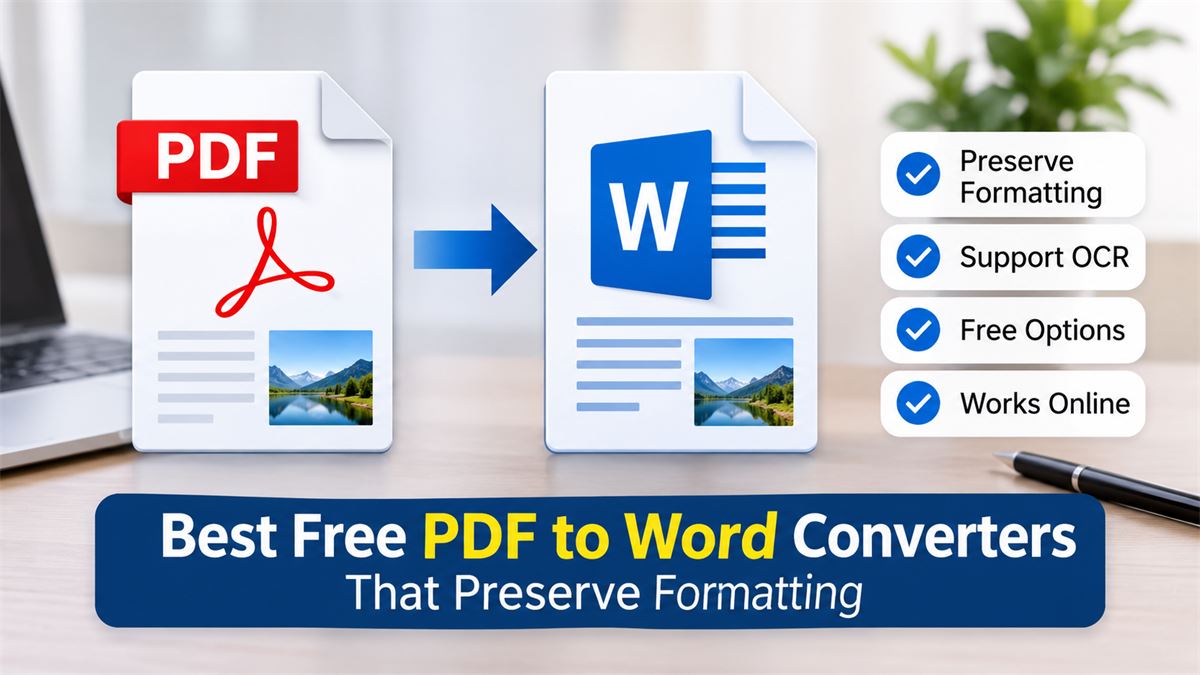
Best Free PDF to Word Converters That Preserve Formatting (2026)
Converting a PDF into an editable Word document sounds simple until the formatting changes. Tables move out of place, images become misaligned, fonts look different, and paragraphs may break across multiple pages.
If you need to edit a report, update a resume, modify an invoice, or reuse information from a PDF, choosing the right PDF to Word converter can save considerable time.
The good news is that several tools offer free PDF-to-Word conversion. However, they differ in formatting accuracy, scanned document support, OCR features, file restrictions, and privacy policies.
In this guide, we compare seven useful options, explain their advantages and limitations, and help you choose the right converter for your documents.
Quick Comparison: Best Free PDF to Word Converters
Here is a quick overview of the tools covered in this guide.
| Tool | Best For | Free Option | Scanned PDF Support |
|---|---|---|---|
| PDFgear | OCR and offline conversion | Yes | Yes |
| PDF24 | Regular free conversions | Yes | Separate OCR tools |
| Adobe Acrobat | Professional document conversion | Yes, with usage restrictions | Check available features |
| Smallpdf | Quick online conversion | Yes, with restrictions | OCR is a Pro feature |
| iLovePDF | Everyday PDF tasks | Yes | OCR requires Premium |
| Microsoft Word | Editing text-based PDFs | Requires an available Word license | Not a dedicated OCR solution |
| Google Docs | Basic text extraction | Yes | OCR through document opening |
1. PDFgear – Best for Free Conversion and OCR
Best for: Users who want to convert regular and scanned PDFs into editable Word documents.
PDFgear PDF to Word Converter is a useful option for people who want more than basic document conversion. It offers an online converter as well as desktop software.
One useful feature is its OCR mode. OCR, or Optical Character Recognition, recognizes text inside scanned pages and helps turn image-based documents into editable content.
Main Features
- Converts PDF documents into Word format.
- Offers standard and advanced OCR conversion modes.
- Supports scanned and image-based PDFs.
- Online conversion supports single files up to 100 MB, according to its published information.
- Desktop software provides offline conversion options.
Advantages
- Useful for scanned documents.
- Offers online and offline workflows.
- Does not require an account for its online converter.
Limitations
- OCR accuracy depends on scan quality.
- Complex tables and multi-column layouts may need manual corrections.
- Online processing requires uploading the document.
Verdict: PDFgear is a good starting point if you frequently work with scanned documents or want an offline conversion option.
2. PDF24 – Best for Free Everyday PDF Conversion
Best for: Users looking for a free online converter without registration.
PDF24 Tools offers a straightforward PDF-to-Word conversion service. It is particularly useful for people who do not want to install additional software or create an account.
PDF24 states that its online PDF tools are free, with no registration or subscription required. Its processing servers are located in Germany, and uploaded files are automatically deleted after one hour.
Main Features
- Online PDF-to-Word conversion.
- No account registration required.
- No usage limits are stated by the service.
- Works through common desktop and mobile browsers.
- Offers a separate Windows desktop application.
Advantages
- Free to use.
- Simple conversion process.
- No need to install software for online conversion.
- Published file deletion policy.
Limitations
- The online converter processes files on its servers.
- Scanned PDFs may require a separate OCR step.
- Complex document layouts should be checked after conversion.
Verdict: PDF24 is worth considering for regular document conversion, particularly when you want a free service without a mandatory account.
3. Adobe Acrobat – Best for Professional PDF Workflows
Best for: Professionals who regularly work with PDF documents.
Adobe Acrobat Online provides a PDF-to-Word converter that turns PDF files into editable Word documents.
Adobe is the company behind the PDF format, and Acrobat offers a range of document conversion and editing features. Its online converter can be tried for free, although usage restrictions and sign-in requirements may apply.
Main Features
- Converts PDF files into DOC and DOCX formats.
- Preserves embedded images in the converted document.
- Works through a web browser.
- Provides additional PDF editing and export options.
Advantages
- Established PDF software provider.
- Useful for professional document workflows.
- Supports multiple document formats.
Limitations
- Free online conversion has usage restrictions.
- Some features require an Adobe account or subscription.
- Complex layouts may still need adjustments.
Verdict: Adobe Acrobat is a strong option when document quality and a broader PDF editing workflow are important.
Visit Adobe Acrobat PDF to Word
4. Smallpdf – Best for Quick Online Conversion
Best for: Users who want to convert a PDF without installing additional software.
Smallpdf provides an easy-to-use online PDF-to-Word converter. You can select a PDF file, upload it, convert it, and download the resulting Word document.
The service supports conversion through browsers on Windows, Mac, Linux, Android, and iOS.
Main Features
- Online PDF-to-Word conversion.
- No account required to try the converter.
- Supports DOCX output.
- Works across desktop and mobile devices.
Advantages
- Simple interface.
- Quick conversion workflow.
- No software installation required.
Limitations
- Free usage is restricted.
- OCR is a Pro feature.
- Some advanced PDF tools require a subscription.
Verdict: Smallpdf is suitable for occasional conversions when convenience is more important than advanced features.
5. iLovePDF – Best for Everyday PDF Management
Best for: Users who need multiple PDF management tools.
iLovePDF offers PDF-to-Word conversion along with tools for merging, splitting, compressing, rotating, and managing PDF documents.
Its PDF-to-Word converter supports PDFs containing selectable text. For scanned documents with non-selectable text, the service offers a separate Premium OCR option.
Main Features
- PDF-to-Word conversion.
- PDF merging and splitting.
- PDF compression.
- Document organization tools.
- OCR conversion through its Premium option.
Advantages
- Multiple PDF tools in one place.
- Easy-to-understand interface.
- Useful for regular PDF management.
Limitations
- Some features have free usage restrictions.
- OCR conversion requires Premium.
- Complex formatting may require manual corrections.
Verdict: iLovePDF is a practical choice if you need more than just PDF-to-Word conversion.
6. Microsoft Word – Best for Users Who Already Have Word
Best for: Users who already have Microsoft Word installed and want to edit a text-based PDF.
You may not need a separate online converter if you already have a compatible desktop version of Microsoft Word.
Word can open a PDF and create an editable copy. It attempts to match the original layout while converting the document into an editable Word format.
How to Convert PDF to Word Using Microsoft Word
- Open Microsoft Word on your computer.
- Click File and select Open.
- Browse and select your PDF document.
- Word will display a message explaining that it will convert the PDF into an editable document.
- Click OK to continue.
- Review the converted document.
- Go to File, select Save As, and save the document as DOCX.
Advantages
- No third-party online converter is needed.
- Useful for text-based documents.
- Works locally on your computer.
- Original PDF remains unchanged.
Limitations
- Requires access to a compatible Word application.
- Complex layouts may change during conversion.
- Scanned documents need OCR before their text can be edited.
Verdict: If you already have Microsoft Word, try its built-in conversion feature before uploading your document to another website.
7. Google Docs – Best for Basic Text Conversion
Best for: Students and users who want a browser-based document editing option.
Google Docs can be useful when you need to extract and edit text from a PDF without installing a desktop application.
For compatible documents, Google Drive can open a PDF using Google Docs and attempt to recognize its text. This is particularly useful for simple documents and some scanned files.
How to Convert a PDF Using Google Docs
- Open Google Drive.
- Upload your PDF document.
- Right-click the uploaded PDF.
- Choose Open with and select Google Docs, where available.
- Wait for Google Docs to process the document.
- Review the extracted text and formatting.
- Choose File, Download, and Microsoft Word (.docx).
Advantages
- Free document editing option.
- Works in a web browser.
- Useful for extracting text from simple PDFs.
- Supports DOCX downloads.
Limitations
- Formatting may change considerably.
- Tables, columns, and images may not retain their original positions.
- Scanned document recognition depends on image quality.
Verdict: Google Docs is a convenient alternative when your main goal is editing or reusing text rather than preserving an exact page layout.
Which PDF to Word Converter Should You Choose?
The right choice depends on the type of PDF you want to convert and how important formatting is to you.
| Your Requirement | Recommended Tool |
|---|---|
| Scanned PDF with OCR | PDFgear |
| Free online conversion without registration | PDF24 |
| Professional PDF workflow | Adobe Acrobat |
| Quick browser-based conversion | Smallpdf |
| Multiple PDF management tools | iLovePDF |
| Editing a simple PDF locally | Microsoft Word |
| Extracting basic text | Google Docs |
Why Does Formatting Change When Converting PDF to Word?
A PDF and a Word document do not store information in the same way.
A PDF is designed to maintain a fixed page appearance. It stores the positioning of text, images, and graphics. A Word document, on the other hand, uses editable elements such as paragraphs, headings, tables, and text boxes.
During conversion, the software has to identify these elements and recreate them in an editable format. This process is not always perfect.
Here are some common reasons why formatting changes:
1. Different Fonts
If the original PDF uses a font that is unavailable on your computer, Word may replace it with another font. This can change line spacing and page breaks.
2. Complex Tables
Tables with merged cells, unusual spacing, or multiple columns may not convert correctly.
3. Scanned Documents
A scanned PDF contains images of text instead of actual selectable characters. OCR is needed to recognize the text before it can become editable.
4. Multiple Columns and Graphics
Documents containing multiple columns, diagrams, and floating images can be difficult to reconstruct accurately.
How to Convert a Scanned PDF to Word Without Losing Text
If your PDF was created by scanning a paper document, a regular PDF converter may not be enough.
You need an OCR-enabled converter that can recognize characters inside images.
Follow these steps:
- Choose a converter that supports OCR, such as PDFgear.
- Upload your scanned PDF or open it in the desktop application.
- Select the OCR or Advanced conversion mode, if available.
- Choose the appropriate document language.
- Start the conversion process.
- Download the editable Word document.
- Check names, numbers, tables, and special characters against the original.
OCR can recognize printed text, but handwriting, blurry scans, unusual fonts, and complex layouts may still produce errors.
How to Preserve Formatting After PDF-to-Word Conversion
Even with a good converter, you should review the resulting Word file before using or sharing it.
- Use a high-quality PDF: Clear documents generally produce better conversion results.
- Choose the correct OCR language: This helps recognize characters accurately.
- Check the fonts: Install the required fonts when legally available.
- Review tables: Check cell alignment, borders, and spacing.
- Inspect images: Make sure pictures and diagrams remain in the correct positions.
- Compare page breaks: Check whether paragraphs or headings have moved to different pages.
- Save as DOCX: Use the modern Word document format for better compatibility.
Is It Safe to Use Free Online PDF Converters?
Online PDF converters are convenient, but you should understand what happens to your files when you upload them.
Some services process documents on their servers and automatically delete them after a specified period. Others provide desktop applications that process files locally.
Before uploading a document, consider these precautions:
- Read the service's privacy policy and file deletion information.
- Avoid uploading sensitive financial, identity, medical, or confidential business documents to unfamiliar services.
- Prefer offline conversion when documents contain confidential information.
- Use a reputable service with encrypted file transfers.
- Delete downloaded files from shared computers when you finish.
Remember that HTTPS encryption protects data during transfer, but it does not automatically mean that a service processes your document locally.
Frequently Asked Questions
1. What is the best free PDF to Word converter?
PDFgear, PDF24, Adobe Acrobat, Smallpdf, and iLovePDF are useful options. The best choice depends on your document type, OCR requirements, free usage restrictions, and formatting needs.
2. Can I convert PDF to Word without losing formatting?
You can often preserve most formatting when converting a well-structured text-based PDF. However, complex tables, images, columns, and unusual fonts may require manual adjustments.
3. How do I convert a PDF to Word for free without installing software?
You can use online tools such as PDF24, PDFgear, Smallpdf, or Adobe Acrobat. Upload your PDF, start the conversion, and download the resulting Word document. Free usage conditions vary between services.
4. Can I convert a scanned PDF into an editable Word document?
Yes. You need a converter with Optical Character Recognition (OCR). OCR recognizes text inside scanned pages and converts it into editable content.
5. Is PDFgear completely free?
PDFgear advertises free online and desktop PDF conversion options. Its online converter supports single files up to 100 MB according to its published information. Check the official website for current feature conditions.
6. Can Microsoft Word convert PDF files directly?
Yes. Compatible desktop versions of Microsoft Word can open a PDF and convert it into an editable document. This works best with PDFs that contain mostly text.
7. Is an online PDF converter safe for confidential documents?
It depends on the service and its data-handling practices. For confidential documents, an offline converter is generally a better choice because the document can remain on your computer.
8. What is the difference between PDF and DOCX?
PDF is designed to preserve a document's appearance across devices, while DOCX is an editable document format used by Microsoft Word and compatible applications.
Final Verdict
Choosing the best free PDF to Word converter depends on what you need to do with your document.
PDFgear is worth considering for scanned documents and OCR, while PDF24 is a convenient option for everyday online conversions. Adobe Acrobat is useful for professional PDF workflows, and Smallpdf and iLovePDF provide straightforward browser-based alternatives.
If you already have Microsoft Word, its built-in PDF conversion feature is also worth trying. For basic text extraction, Google Docs can be a useful alternative.
Most importantly, do not assume that any converter will preserve every element perfectly. Always review the converted document, especially when it contains tables, images, important figures, or confidential information.
Choose the tool that fits your document, check its free usage conditions, and make sure the final Word file is accurate before sharing it.