
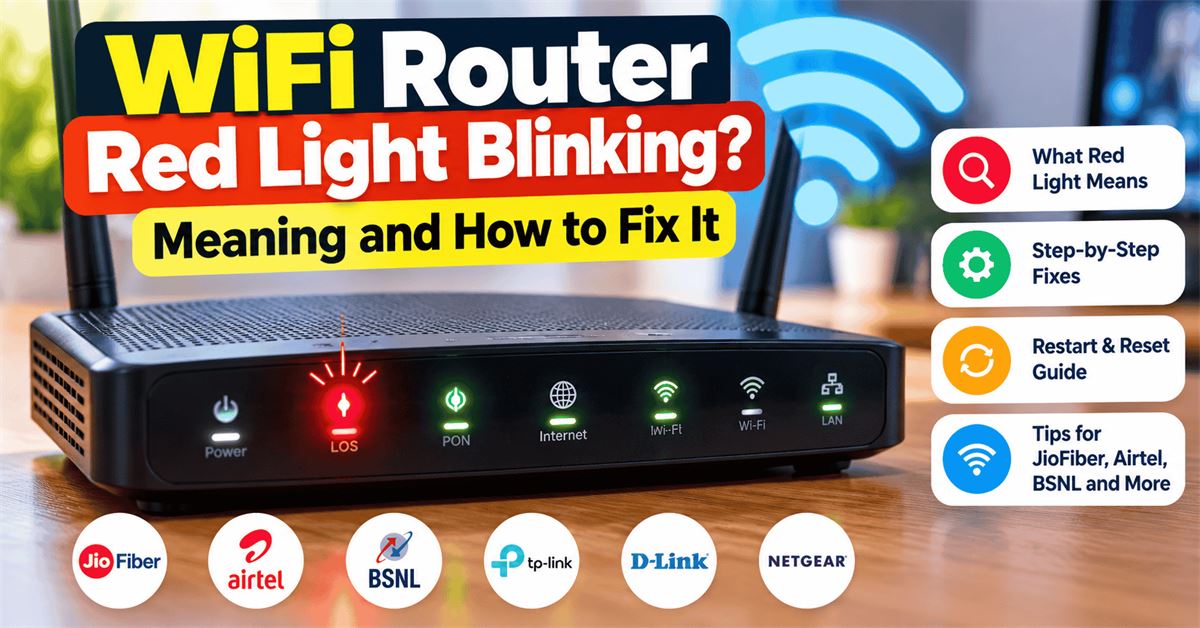
WiFi Router Red Light Blinking? Meaning & 9 Fixes
Is your WiFi router red light blinking and the internet suddenly not working? You might still see your Wi-Fi network on your phone, but websites refuse to load. Or your fiber router may show a flashing red LOS light even though the power is on.
A red light does not always mean the router is broken. It can indicate a lost fiber signal, a disconnected internet connection, a startup problem or, on some models, a power or hardware fault. The exact meaning depends on which light is red and the router model.
Quick answer: Check the label next to the blinking red light. A red LOS light on a fiber ONT usually indicates loss of optical signal; a red Internet/WAN light often means the router cannot reach the provider; and a red Power light may signal a device-specific problem. First check for a provider outage, inspect visible cable connections, then restart the equipment once. Never look into a fiber connector or attempt to repair the fiber cable yourself.
What Does a Blinking Red Light on a WiFi Router Mean?
Router lights are status indicators, but manufacturers do not use one universal colour system. For instance, a red indicator on one router may signal no internet while a similar light on another model may be part of its normal startup sequence.
| Light label | Possible meaning of red/blinking red | What to check first |
|---|---|---|
| LOS (Loss of Signal) | Fiber signal is missing or too weak on many optical network terminals (ONTs) | Fiber connection and provider outage |
| Internet / WAN | Router is powered but cannot establish internet connectivity | Provider status and WAN cable |
| PON | Fiber registration or connection issue on some ONTs; colour meanings vary | Model manual and ISP status |
| Power | Possible boot, firmware, power or hardware issue, depending on model | Power adapter and model manual |
| Wi-Fi / WLAN | Wireless feature status or error; blinking may be normal on some devices | Exact device light legend |
| WPS | Pairing attempt or failed pairing on some models | Whether WPS was recently pressed |
Tip: Look at the printed label, not just the light colour. If there is no label, check your router's model number on its underside and consult the manufacturer's LED guide.
9 Ways to Fix a WiFi Router Blinking Red Light
1. Identify the Exact Red Light Before Changing Settings
Start by identifying whether the red light is marked LOS, PON, Internet, WAN, Power or WPS. This single detail can save you from unnecessary resets.
- Look at the front or top of the router.
- Read the label beside the red LED.
- Note whether it is blinking slowly, rapidly or staying solid.
- Find the router's brand and model number.
- Check the official LED meanings for that model.
If the light appears only for a few seconds during startup, allow the device to finish booting before treating it as a fault. Some models change colour as they connect.
2. Check Whether Your Internet Provider Has an Outage
A local network outage is a common reason a working router suddenly loses internet access. Before unplugging anything, check the provider's official app, support page or service helpline using mobile data.
Ask whether other customers in your building or area are experiencing the same issue. If the provider confirms an outage, restarting repeatedly is unlikely to help. Wait for the estimated restoration time and monitor the official status.
For Indian connections, you can use the official support channels of JioFiber, Airtel Xstream Fiber, BSNL Bharat Fibre, ACT Fibernet or your local ISP. Avoid trusting an unverified social media post as confirmation of an outage.
3. Restart the Router and Fiber ONT Safely
A normal restart can clear a temporary software or network-session problem. It is different from a factory reset and generally does not erase your Wi-Fi name or password.
- Turn off the router using its power switch, if available.
- Unplug its power adapter from the socket.
- Wait about 30 seconds.
- Reconnect power and allow several minutes for startup.
- Check whether the Internet, PON or LOS indicator has changed.
If you have a separate fiber ONT and Wi-Fi router, restart the ONT first, wait until it has finished starting, and then restart the Wi-Fi router. If your provider specifies a different sequence, follow its instructions.
Do not repeatedly power-cycle the device. If the LOS light remains red after one careful restart, the underlying problem may be with the optical signal rather than the router's software.
4. Inspect the Visible Power and Network Cables
A loose cable can interrupt service. Check that the power adapter is firmly connected and that any Ethernet cable between your modem/ONT and router is fully seated.
If you have a separate modem and router, confirm that the Ethernet cable is plugged into the intended WAN/Internet port. Check for obvious damage such as crushed cables, bent connectors or a loose power plug.
For fiber connections, inspect the cable visually without unplugging the optical connector. Fiber cables are delicate and should not be sharply bent, pulled, twisted or crushed behind furniture.
Safety: Never look into the end of a fiber-optic cable or connector. Do not open optical equipment or try to splice a damaged fiber. Contact your provider if you suspect a fiber fault.
5. Check Whether the Problem Is Wi-Fi or the Internet Connection
Wi-Fi and internet are not the same thing. Your phone can connect to a router's Wi-Fi network even when the router has no working connection to the internet.
To identify the problem, connect another device to the same Wi-Fi network. If possible, test a laptop using an Ethernet cable connected to the router.
| What you observe | Likely area to investigate |
|---|---|
| All devices connect to Wi-Fi but none can browse | ISP connection, WAN, DNS or router internet settings |
| Only one phone cannot browse | That phone's Wi-Fi or network settings |
| Ethernet works but Wi-Fi does not | Wireless network configuration or interference |
| Router's Wi-Fi network is missing entirely | Router startup, Wi-Fi settings or device fault |
This test helps you avoid changing router settings when the real issue is limited to one phone or laptop.
6. Check Internet or WAN Settings Only if You Know the Correct Details
Some connections use a provider-managed configuration, while others require PPPoE credentials, VLAN settings or a particular WAN mode. Incorrect settings can leave the Internet light red even though the cables are connected.
If the problem started immediately after you changed router settings, review what you changed. Restore only the setting you know was incorrect. If the ISP supplied your router, contact its support team before changing advanced configuration.
Do not guess PPPoE usernames or passwords, disable security features or copy random internet settings from videos. They may be wrong for your specific connection.
7. Check for Overheating and Power Problems
A router that is excessively hot, repeatedly rebooting or showing unusual power-light behaviour may have a power or hardware issue. Make sure it has ventilation and is not covered by cloth, books or other objects.
Place it on a stable surface away from direct sunlight and water. Check whether the power adapter or cable is visibly damaged. If you notice burning smells, sparks or a damaged adapter, disconnect power safely and contact qualified support.
Use only the correct power adapter specified for the device. An adapter with the wrong voltage, polarity or current capacity can cause damage. Do not open the router's casing to investigate.
8. Check Firmware Updates Through Official Channels
Router firmware controls how the device starts, connects and manages network traffic. An update can sometimes fix known stability problems, but updating firmware during an unstable power or connection problem may be risky.
If the router is otherwise working and the manufacturer provides an update, follow the official instructions for your exact model and hardware revision. Many ISP-supplied fiber routers receive firmware updates automatically from the provider.
Never install firmware from an unknown website or from a different router model. If the device is stuck with a red Power light, contact the manufacturer or ISP rather than forcing an update.
9. Contact Your ISP Before Considering a Factory Reset
If the red light remains after checking for an outage, inspecting visible cables and restarting once, the next step is usually to contact the provider.
Share the router brand, model, the exact LED label, when the problem started and whether every device is affected. A clear photo of the indicator lights can help the technician.
A factory reset erases configuration on many routers. On an ISP-managed connection, that may remove settings needed to reconnect, including Wi-Fi details or provider-specific provisioning.
Do not press the recessed Reset button unless the ISP or device manufacturer specifically instructs you to do so. A factory reset is not a reliable fix for a broken or disconnected fiber line.
JioFiber, Airtel, BSNL and Other Indian Router Red Lights
Different internet providers may supply different router and ONT models, even within the same service. Therefore, the provider name alone is not enough to determine the meaning of every LED.
JioFiber Router Red Light
If your JioFiber device displays a red indicator and the internet is unavailable, first check the official MyJio app or Jio support for connection status and local outages. Identify the exact light and device model before troubleshooting further. Avoid resetting a provider-managed router without guidance.
Airtel Xstream Fiber Red Light
For Airtel Xstream Fiber, check the light label and the Airtel app or official support channel. If the ONT reports loss of optical signal, a technician may need to inspect the line or connector.
BSNL Bharat Fibre LOS Red Light
Many BSNL fiber connections use ONTs with an LOS indicator. A blinking red LOS light often points to an optical signal problem, but the exact interpretation should be confirmed against the ONT model. Contact BSNL or your local authorized fiber service provider if the issue persists.
TP-Link, D-Link, Netgear and Other Routers
Standalone Wi-Fi routers often use Internet or WAN status indicators rather than an optical LOS light. If your device has no fiber input, troubleshoot the modem-to-router connection and consult the manufacturer's model-specific LED reference.
Red LOS Light vs Red Internet Light: What's the Difference?
A red LOS light typically relates to the optical link between a fiber ONT and the provider's network. It may indicate an interruption in the fiber path or signal.
A red Internet light more often indicates that the router cannot establish usable internet connectivity. That can happen even when the physical link is present, for example because of a provider authentication or WAN configuration issue.
Both problems can result in “Connected, no internet” on your phone, but they do not necessarily have the same solution. This is why identifying the LED label is the most important first step.
How Long Should You Wait for a Router Red Light to Go Away?
After restarting, allow the device several minutes to boot and reconnect. Some connections take longer than others, especially after a power cut or network outage.
If the light remains red after a normal startup period and the ISP has not reported a restoration time, report the issue rather than restarting the router over and over. Ask for a service ticket number and expected next update.
How to Prevent Router Connection Problems
- Keep the router ventilated and away from moisture.
- Use its specified power adapter and a reliable electrical connection.
- Do not tightly bend or pull fiber cables.
- Protect exposed cables from furniture movement and pets.
- Keep a record of the router model and your ISP support details.
- Change advanced router settings only when you understand their purpose.
- Follow official firmware and maintenance instructions.
Good placement and cable care can reduce avoidable problems, although they cannot prevent provider outages or faults elsewhere in the network.
Frequently Asked Questions
Why is my WiFi router blinking red but still showing Wi-Fi?
The wireless network can remain active while the internet connection is down. Check whether other devices can access the internet and identify the red LED's label.
What does a blinking red LOS light mean?
On many fiber ONTs, a blinking red LOS light indicates a lost or weak optical signal. Check for an ISP outage and contact the provider if it persists. Do not handle exposed fiber connectors.
Will restarting my router fix the red light?
It may resolve a temporary software or connection issue, but it will not repair a damaged fiber cable or an ongoing provider outage.
Should I press the reset button when the router light is red?
Usually not as a first step. Factory reset can erase important settings. Contact your ISP or follow the exact model's official guidance first.
Why is the Internet light red after a power cut?
The router may still be reconnecting, the ONT may not have fully started or the provider's equipment may be affected. Allow startup time and check for a service outage.
Can a red router light mean the router is damaged?
Yes, on some models, especially when accompanied by repeated restarts or unusual Power LED behaviour. But a red light alone is not proof of hardware failure.
How do I fix “Connected, no internet” on my phone?
Check whether other devices have internet access. If all devices fail, troubleshoot the router or ISP connection. If only one phone fails, review that phone's network settings.
Does a red PON light mean the same thing as red LOS?
Not necessarily. PON and LOS indicators describe different aspects of a fiber connection, and their colours vary by model. Use the device's official manual.
Final Thoughts
A WiFi router red light blinking can be frustrating, but the fastest solution is to identify the exact light first. A red LOS indicator often needs fiber-line or ISP attention, while an Internet/WAN indicator may involve connection settings, a modem link or a temporary provider problem.
Start with safe checks: look for outages, inspect visible cables, restart once and test another device. Avoid unnecessary factory resets or fiber repairs. If the problem continues, report the LED label and router model to your internet provider.
For another practical money-saving guide, read our article on how to track a product's price history before buying. It can help if you eventually decide to compare prices on a replacement router or networking equipment.
Official Help and Further Reading
Disclaimer: LED colours and troubleshooting steps differ by router model, firmware and internet provider. Follow your device manual and ISP guidance where they differ from general advice.