
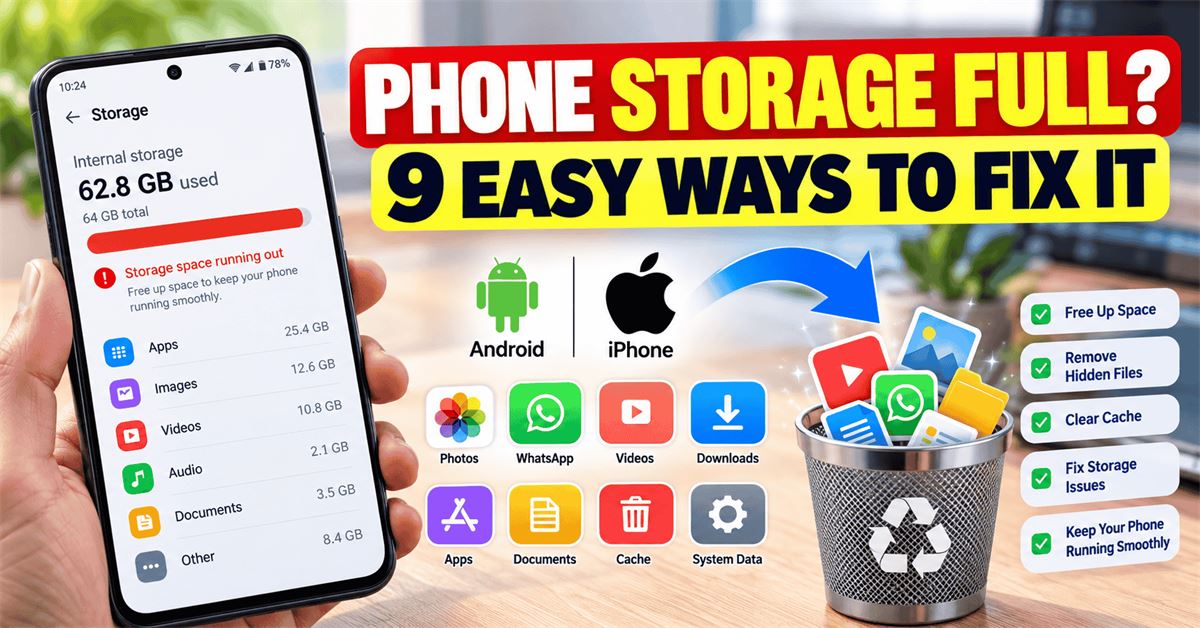
Phone Storage Full Even After Deleting Files? 9 Ways to Fix It
Have you deleted hundreds of photos, videos or unwanted apps, but your smartphone still says “Storage Space Running Out” or “Phone Storage Full”? This frustrating problem can happen on both Android and iPhone. Sometimes the available storage barely changes even after you remove several gigabytes of files.
The good news is that you usually do not need a new phone or a factory reset. Deleted items may still be in a trash folder, messaging apps may retain media, and offline downloads or app data may be using space you have forgotten about.
This guide explains why phone storage stays full after deleting files and gives you nine practical, safer ways to fix it. The steps apply broadly to Samsung, Redmi, Realme, Vivo, Oppo, Pixel and iPhone devices, although menus vary by model and software version.
Why Is My Phone Storage Still Full After Deleting Files?
Deleting a file does not always immediately free up storage. Here are the most common reasons:
- Recently Deleted or Trash: Photos and files may remain in a recovery folder until permanently removed.
- App caches: Apps save temporary images, thumbnails and other data that can grow over time.
- WhatsApp media: Chat photos, videos, voice notes and documents may remain on your device.
- Offline downloads: Music, videos, podcasts and maps can occupy several gigabytes.
- System data: Updates, logs and temporary files require space, some of which the phone manages automatically.
- Delayed storage calculations: The displayed free-space figure may take time to update.
Start here: Check Settings > Storage (Android) or Settings > General > iPhone Storage. Find the largest categories before deleting anything else.
1. Empty the Recently Deleted or Trash Folder
Best for: People who deleted photos or videos but recovered little or no storage.
Gallery apps often keep deleted media in a temporary recovery area. Until those items are permanently removed, they may still occupy local storage.
On Android
- Open Gallery or Google Photos.
- Find Trash, Bin or Recently Deleted.
- Review the items carefully.
- Select files you no longer need and use the permanent-delete option.
On iPhone
- Open Photos.
- Open Recently Deleted under Utilities.
- Unlock the album if asked.
- Select the items and tap Delete or Delete All.
Warning: Permanent deletion may be irreversible. If you use iCloud Photos or another syncing service, deleting photos may affect your other devices too. Confirm important files are backed up first.
2. Clear App Cache on Android
Best for: Android apps with unexpectedly high storage usage.
Social media, browsers and video apps may keep cached files to load content faster. Clearing cache can reclaim some temporary space.
- Open Settings > Apps or App Management.
- Choose an app with high storage usage.
- Open Storage or Storage & Cache.
- Tap Clear Cache if the option is available.
| Option | What it does |
|---|---|
| Clear Cache | Removes temporary cached files, generally without removing your account or personal documents. |
| Clear Data / Clear Storage | Resets app data and may erase local content or sign you out. |
Do not confuse these options. On iPhone, there is no universal Clear Cache button for all apps; check an app's own settings or iPhone Storage controls.
3. Remove Unnecessary WhatsApp Photos and Videos
Best for: People who receive many forwarded videos, group photos, documents and voice messages.
WhatsApp can accumulate media over months. Even after clearing your phone gallery, some media may remain associated with chats or local folders.
- Open WhatsApp.
- Go to Settings > Storage and Data > Manage Storage.
- Review large files and media by chat.
- Delete only the items you no longer need.
Also review media auto-download preferences so future group messages do not fill your phone automatically. Back up important chats and attachments before major cleanup. Avoid manually deleting unfamiliar WhatsApp database or backup folders.
4. Delete Large Downloads and Duplicate Files
Best for: Phones containing forgotten PDFs, ZIP files, APK installers, downloaded movies and repeated photos.
On Android, open Files by Google or your manufacturer's file manager. Check Downloads and sort by size if supported. Review the largest files and remove what you no longer need.
On iPhone, open Files > Browse and check On My iPhone and Downloads where available. If a file is in iCloud Drive, distinguish deleting it everywhere from simply removing its local download.
Some gallery apps can identify duplicate photos. Review each suggestion before merging or deleting. Avoid third-party cleaners that demand excessive access to private files.
5. Restart Your Phone to Refresh Storage Information
Best for: Storage figures that appear unchanged immediately after cleanup.
Your phone may need time to recalculate space while apps and system services finish background work. Save your work, restart normally, wait for the device to finish starting, and check storage again.
On most Android phones, look under Settings > Storage; on Samsung the path may appear under Battery and Device Care. On iPhone, use Settings > General > iPhone Storage.
A restart does not magically delete hidden files. It is useful mainly when a display or temporary-process issue is involved.
6. Remove Offline Videos, Music and Maps
Best for: People who use streaming and travel apps offline.
Downloads from YouTube, Netflix, Prime Video, Spotify, YouTube Music, podcast apps and Google Maps can take substantial space. Open each app's Downloads or Offline section and remove items you no longer need.
For example, a few downloaded TV episodes or a large offline map region may occupy more space than hundreds of photos. Remove downloads using the original app rather than deleting unknown application folders.
7. Uninstall or Offload Apps You Rarely Use
Best for: Devices with many unused apps or large games.
Games and editing apps can store extra assets beyond their installation size. On Android, open Settings > Apps, review storage use, and uninstall apps you no longer need.
On iPhone, open Settings > General > iPhone Storage and select an app. You may see Offload App or Delete App.
| Action | App removed? | Documents and data |
|---|---|---|
| Offload App | Yes | Generally kept for reinstalling |
| Delete App | Yes | Associated local app data generally removed |
Check whether an app contains important offline files, saved projects or authentication information before deleting it. Reinstallation also depends on the app remaining available.
8. Check System Data and Hidden Storage Usage
Best for: Phones where System, Other or System Data appears unusually large.
Operating systems reserve storage for updates, logs, caches and essential files. Android may show System and Other categories, while iPhone may show iOS and System Data. Not all of this space can or should be removed.
Review your device's built-in storage recommendations, remove unneeded offline content, and check for software updates. On iPhone, inspect iPhone Storage recommendations and browser website data if appropriate. Clearing browser data may sign you out of websites or remove history.
Avoid deleting unknown system folders, rooting your device solely for cleanup, or trusting apps that promise to remove all system storage.
9. Back Up Your Data and Consider a Factory Reset
Best for: Persistent storage problems after all safer options have failed.
A factory reset removes personal data and settings. It may help with some software-related issues, but it is not guaranteed to fix every storage problem. Treat it as a last resort.
Before resetting, verify backups of photos, contacts, documents, WhatsApp chats, locally stored app files, and authenticator recovery methods. Make sure you know your Google Account or Apple Account credentials.
On Android, reset controls are usually under Settings > System > Reset Options or a similar menu. On iPhone, go to Settings > General > Transfer or Reset iPhone > Erase All Content and Settings.
If the issue continues after a carefully performed reset, contact the manufacturer's authorised support service.
How to Check What Is Taking Up the Most Storage
Before another round of cleanup, inspect the storage breakdown. Android devices often list Apps, Images, Videos, Audio, Documents, System and Other. iPhone Storage shows a visual breakdown and apps ordered by storage use.
Pay attention to the difference between an app's installation size and its stored documents, media or downloads. The biggest app is not necessarily the safest one to remove.
Phone Storage Full: Android vs iPhone Solutions
| Problem | Android | iPhone |
|---|---|---|
| Deleted photos still occupy space | Empty Gallery / Photos Trash | Empty Recently Deleted |
| App cache is large | Clear cache where supported | Use in-app cleanup or offload |
| WhatsApp media | Manage Storage in WhatsApp | Manage Storage in WhatsApp |
| Unwanted downloads | Files app / file manager | Files app |
| Unused apps | Uninstall | Offload or delete |
| Offline videos | Remove in original app | Remove in original app |
| Storage display not updating | Restart and recheck | Restart and recheck |
| System data unusually large | Built-in tools and updates | iPhone Storage recommendations |
How Much Free Storage Should You Keep?
There is no universal minimum for every phone. Keeping approximately 10–15% free, when practical, is a useful general maintenance goal—not an official requirement. Updates and large downloads may need extra temporary space.
| Phone capacity | Practical free-space target |
|---|---|
| 64GB | About 6–10GB |
| 128GB | About 13–19GB |
| 256GB | About 26–38GB |
If your current phone regularly runs out of space, consider how much local storage you need when choosing your next device. A higher-capacity phone can be useful for people who record lots of videos or keep offline media.
When comparing 128GB and 256GB phone variants, do not rely only on the advertised discount. Read our guide to tracking a product's price history before buying to check whether the larger-storage model is being offered at a genuinely competitive price.
How to Stop Your Phone Storage Filling Up Again
- Review large downloads every month.
- Limit automatic media downloads in busy WhatsApp groups.
- Remove offline movies, maps and playlists after using them.
- Uninstall apps and games you no longer need.
- Use reliable backups, and understand the difference between cloud backup and deleting a local copy.
- Check available storage before large app or operating-system updates.
Frequently Asked Questions
Why is my phone storage full even after deleting photos?
The photos may remain in Recently Deleted or Trash. App caches, downloads, WhatsApp media and system data can also occupy space.
Why is Android storage not decreasing after deleting files?
Files may still be in Trash, apps may retain copies, or the storage calculation may not have refreshed. Review categories and restart if needed.
How can I free up storage without deleting my photos?
Remove unnecessary downloads, offline videos, unused apps and unneeded WhatsApp media. Clear supported app caches and back up important content.
Does clearing cache delete photos?
Clearing cache normally removes temporary files, not personal gallery photos. However, Clear Data or Clear Storage can remove local app information.
Why is my iPhone storage full after deleting videos?
Videos may still be in Recently Deleted, or other apps and System Data may occupy the space. Review Settings > General > iPhone Storage.
Can WhatsApp fill up phone storage?
Yes. Photos, videos, documents and voice messages stored by WhatsApp can consume significant local space. Use Manage Storage to review them.
Is it safe to delete the Android folder?
No. Do not delete the entire Android folder. It may contain important application data and files required by apps.
Will a factory reset fix a storage-full problem?
It may resolve some persistent software-related issues but is not guaranteed. It also erases personal data, so verify backups first.
Final Thoughts
If your phone storage is full even after deleting files, begin with the simplest fixes: empty Recently Deleted, review app storage, clean WhatsApp media and remove forgotten offline downloads. Then restart and check the storage breakdown again.
Avoid aggressive cleaners and unfamiliar system folders. With regular maintenance and verified backups, you can keep Android or iPhone storage under control without risking important files.
For more practical technology tips and buying guides, explore DrillTheDeal.